> ## Documentation Index
> Fetch the complete documentation index at: https://dripart-mintlify-update-manual-install-from-readme-30640.mintlify.site/llms.txt
> Use this file to discover all available pages before exploring further.
# Account Management
> In this document, we will introduce the account management features of ComfyUI, including account login, registration, and logout operations.
The account system was added to support `API Nodes`, which enable calls to closed-source model APIs, greatly expanding the possibilities of ComfyUI. Since these API calls consume tokens, we have added a corresponding user system.
Currently, we support the following login methods:
* Email login
* Google login
* Github login
* API Key login (for non-whitelisted site authorization)
We will provide relevant login requirements and explanations in this document.
## ComfyUI Version Requirements
You may need to use at least [ComfyUI v0.3.0](https://github.com/comfyanonymous/ComfyUI/releases/tag/v0.3.30) to use the account system. Ensure that the corresponding frontend version is at least `1.17.11`. Sometimes the frontend may fail to install and revert to an older version, so please check if the frontend version is greater than `1.17.11` in `Settings` -> `About`.
In some regions, network restrictions may prevent normal access to the login API, causing timeouts or failures. Before logging in, please **ensure that your network environment does not restrict access to the corresponding API**, and make sure you can access sites like Google or Github.
Since we are still in rapid iterative updates, related functions may change. If there are no special circumstances, please try to update to the latest version to get support for relevant functions.
## Network Requirements
To login to ComfyUI account, you must be in a secure network environment:
* Only allow access from `127.0.0.1` or `localhost`.
* Do not support using the `--listen` parameter to access the API node through a local network.
* If you are using a non-SSL certificate or a site that does not start with `https`, you may not be able to successfully log in.
* You may not be able to log in on a site that is not in our whitelist (but you can log in using an API Key now).
* Ensure you can connect to our service normally (some regions may require a proxy).
## How to Log In
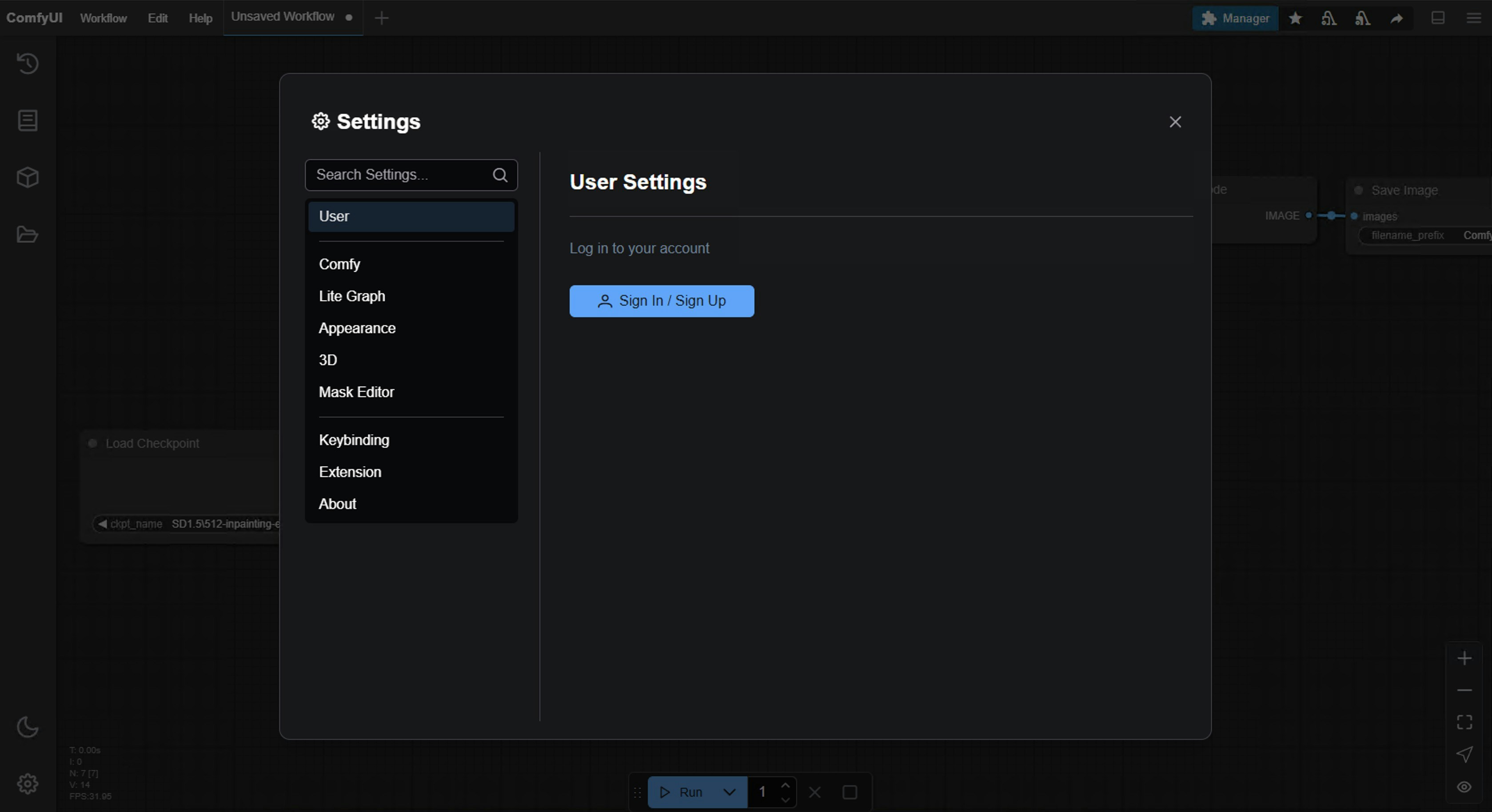
Log in via `Settings` -> `User`:
 ## Login Methods
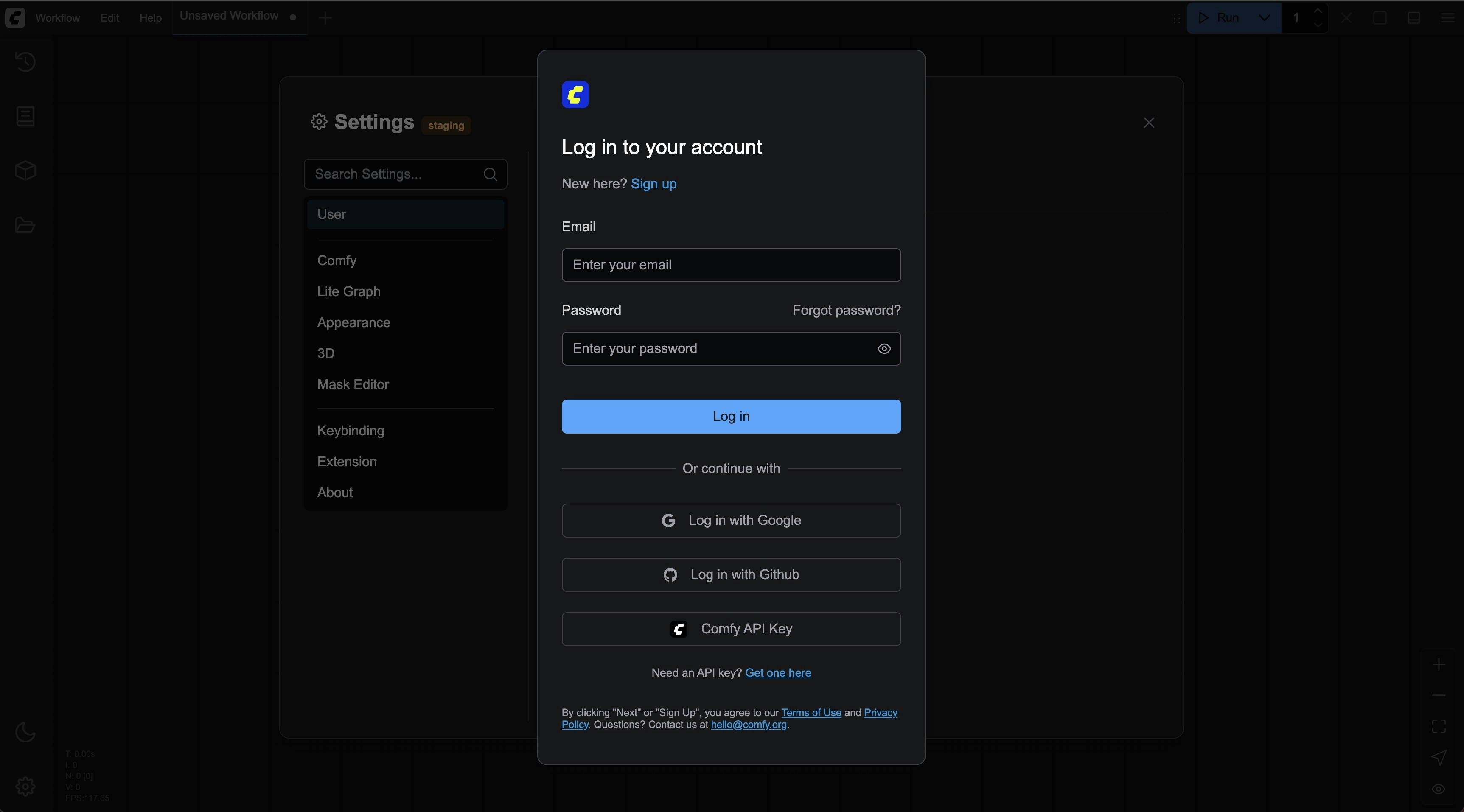 If this is your first login, please create an account first.
## Logging in with an API Key
Since not all ComfyUI deployments are on our domain authorization whitelist, we have provided API Key login in a recent update (2025-05-10) for logging in through non-whitelisted sites. Below are the steps for logging in with an API Key:
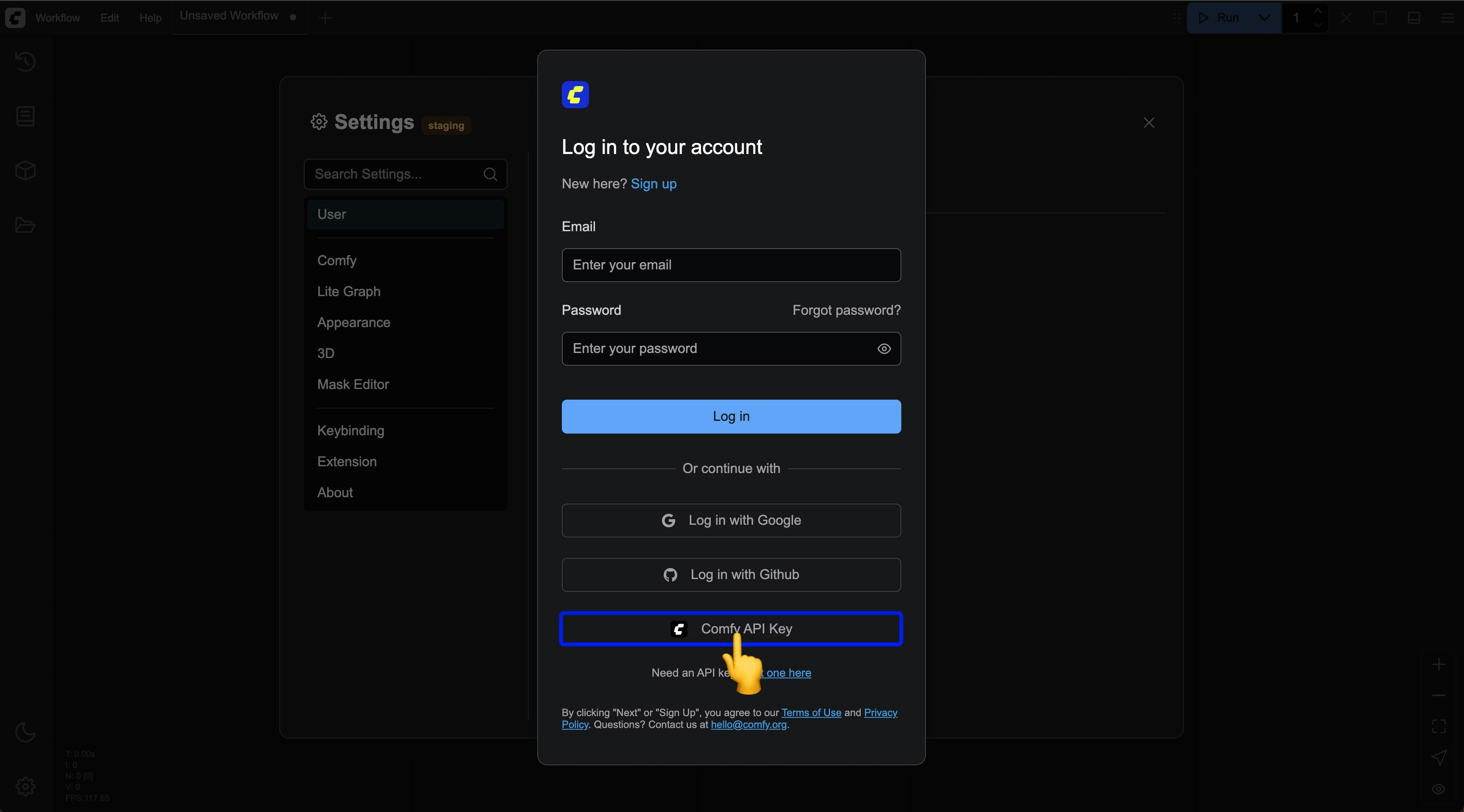
Select `Comfy API Key` login in the login popup
If this is your first login, please create an account first.
## Logging in with an API Key
Since not all ComfyUI deployments are on our domain authorization whitelist, we have provided API Key login in a recent update (2025-05-10) for logging in through non-whitelisted sites. Below are the steps for logging in with an API Key:
Select `Comfy API Key` login in the login popup
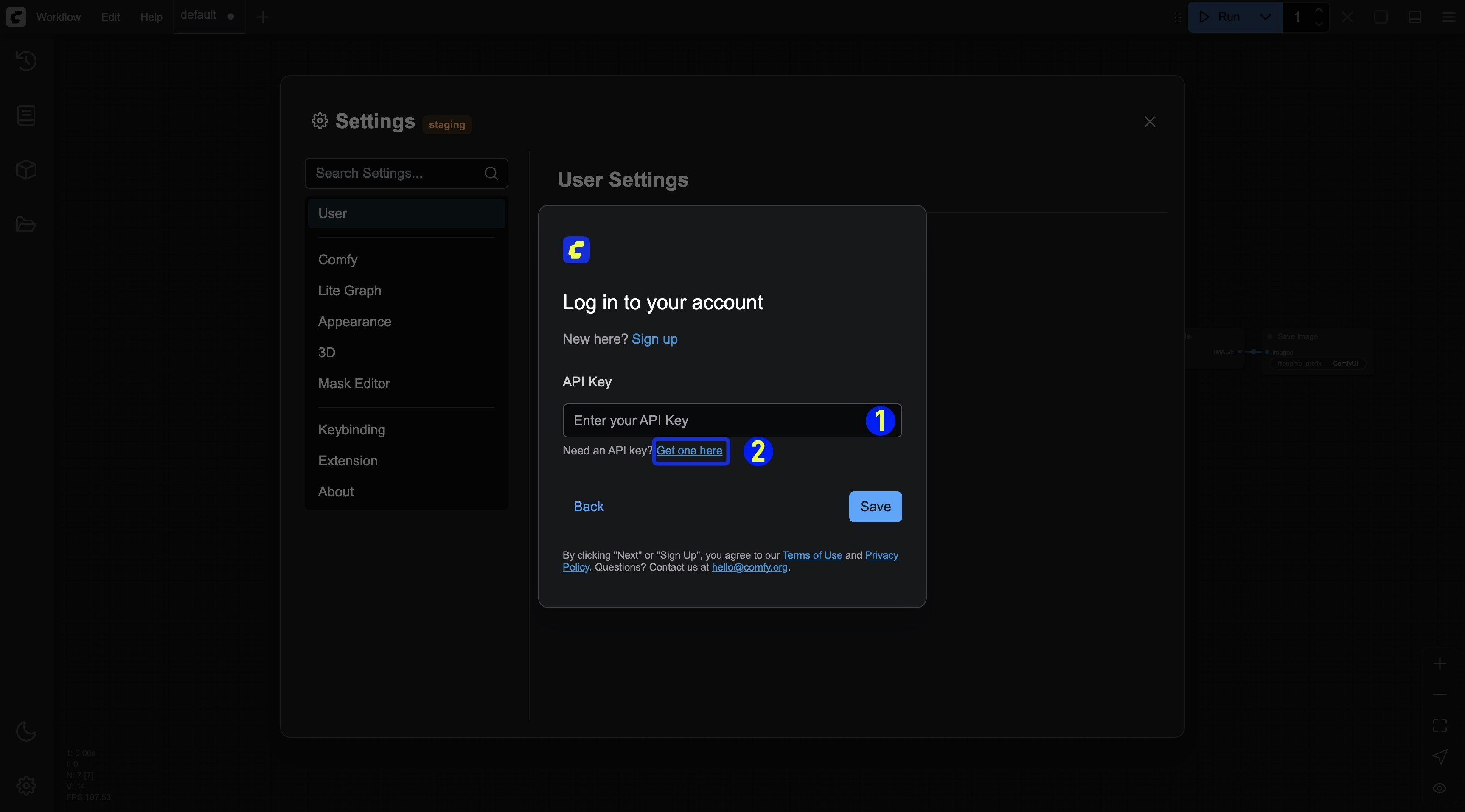 1. Enter your API Key and save it
2. If you don't have an API Key, click the `Get one here` link to go to [https://platform.comfy.org/login](https://platform.comfy.org/login) and log in to obtain it.
After a successful login, you can see the corresponding API Key login information in the settings menu
1. Enter your API Key and save it
2. If you don't have an API Key, click the `Get one here` link to go to [https://platform.comfy.org/login](https://platform.comfy.org/login) and log in to obtain it.
After a successful login, you can see the corresponding API Key login information in the settings menu
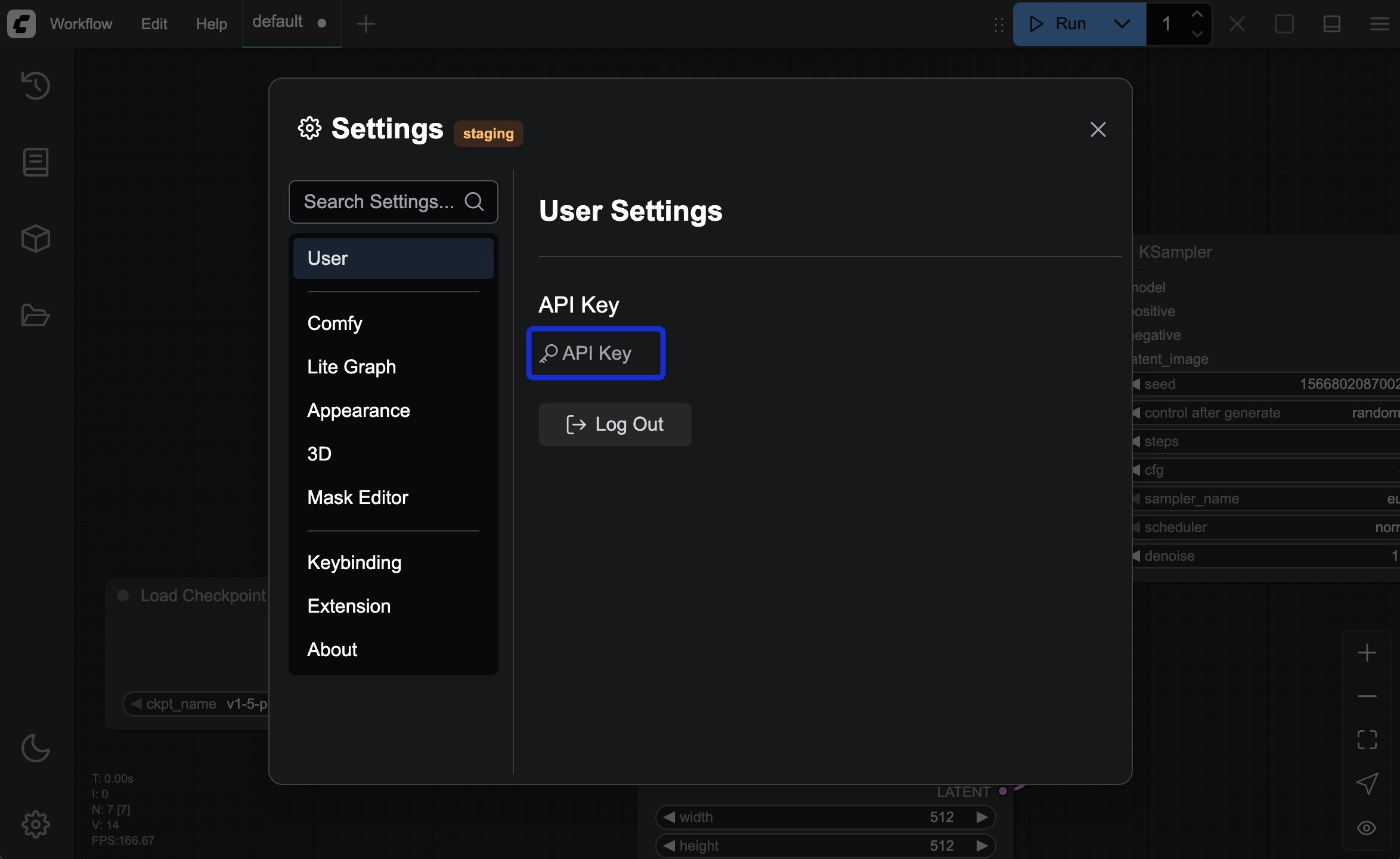 Please refer to the following steps to apply for and obtain an API Key:
Please visit [https://platform.comfy.org/login](https://platform.comfy.org/login) and log in with the corresponding account
Please refer to the following steps to apply for and obtain an API Key:
Please visit [https://platform.comfy.org/login](https://platform.comfy.org/login) and log in with the corresponding account
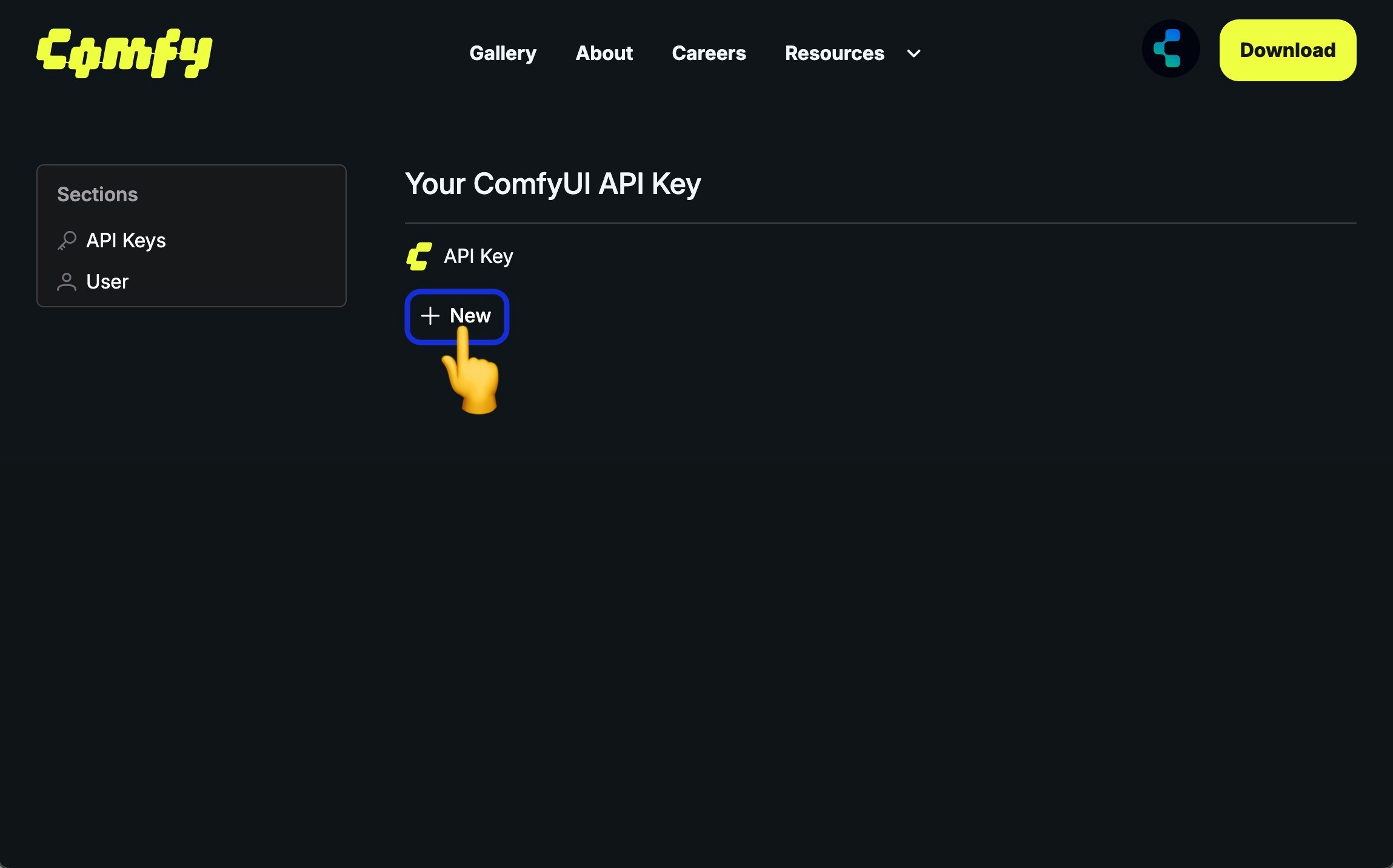
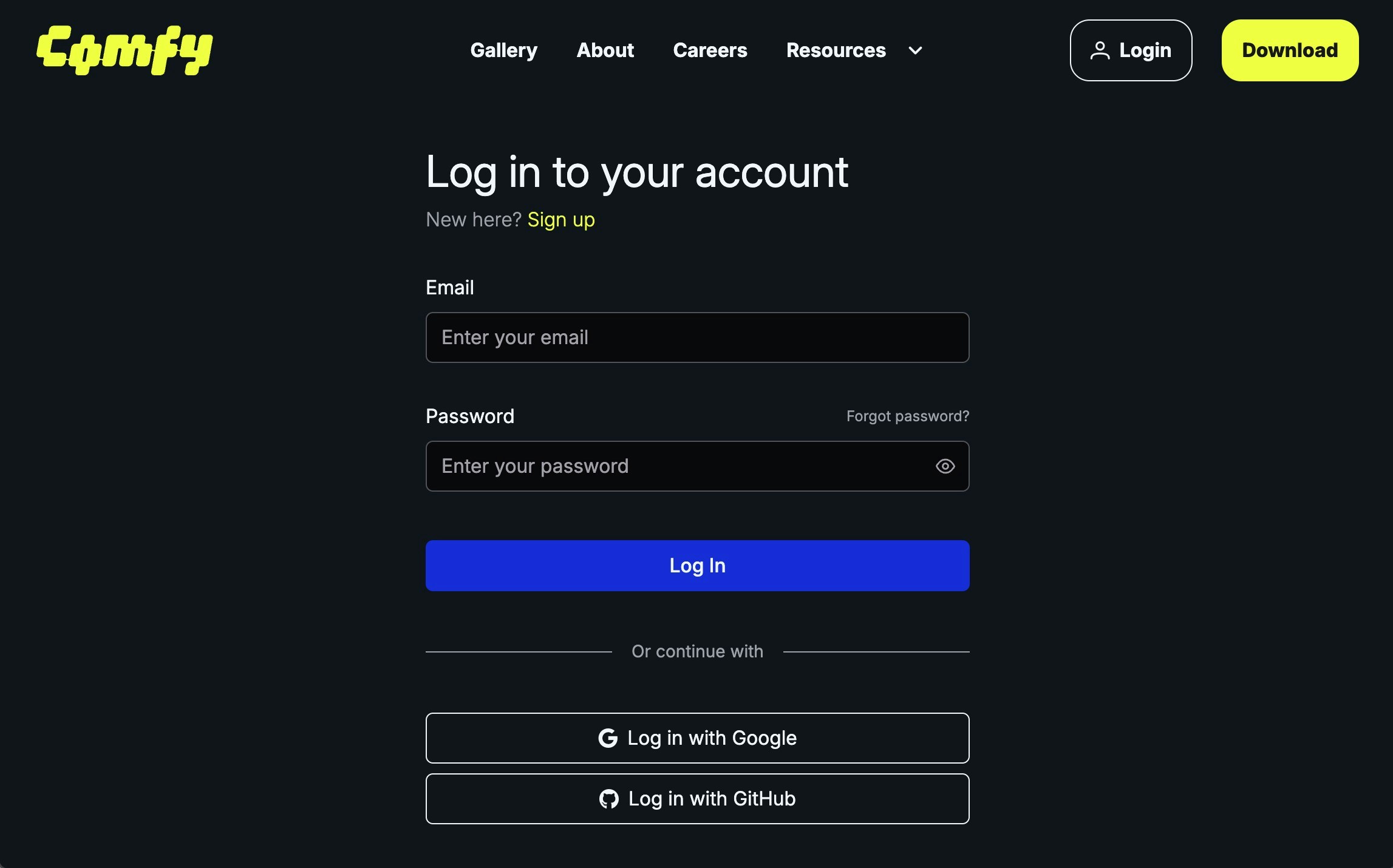 Click `+ New` in API Keys to create an API Key
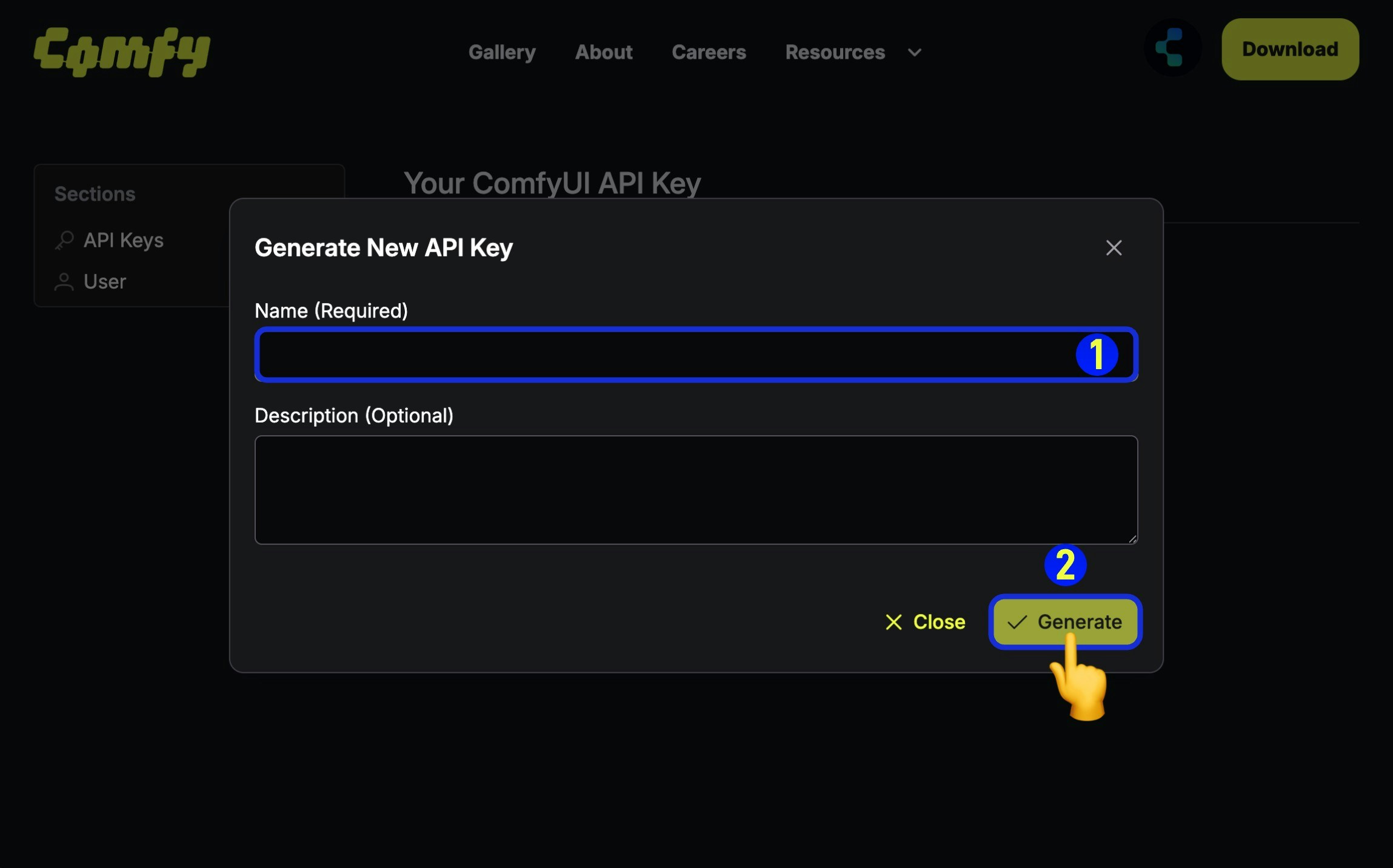 1. (Required) Enter the API Key name,
2. Click `Generate` to create
1. (Required) Enter the API Key name,
2. Click `Generate` to create
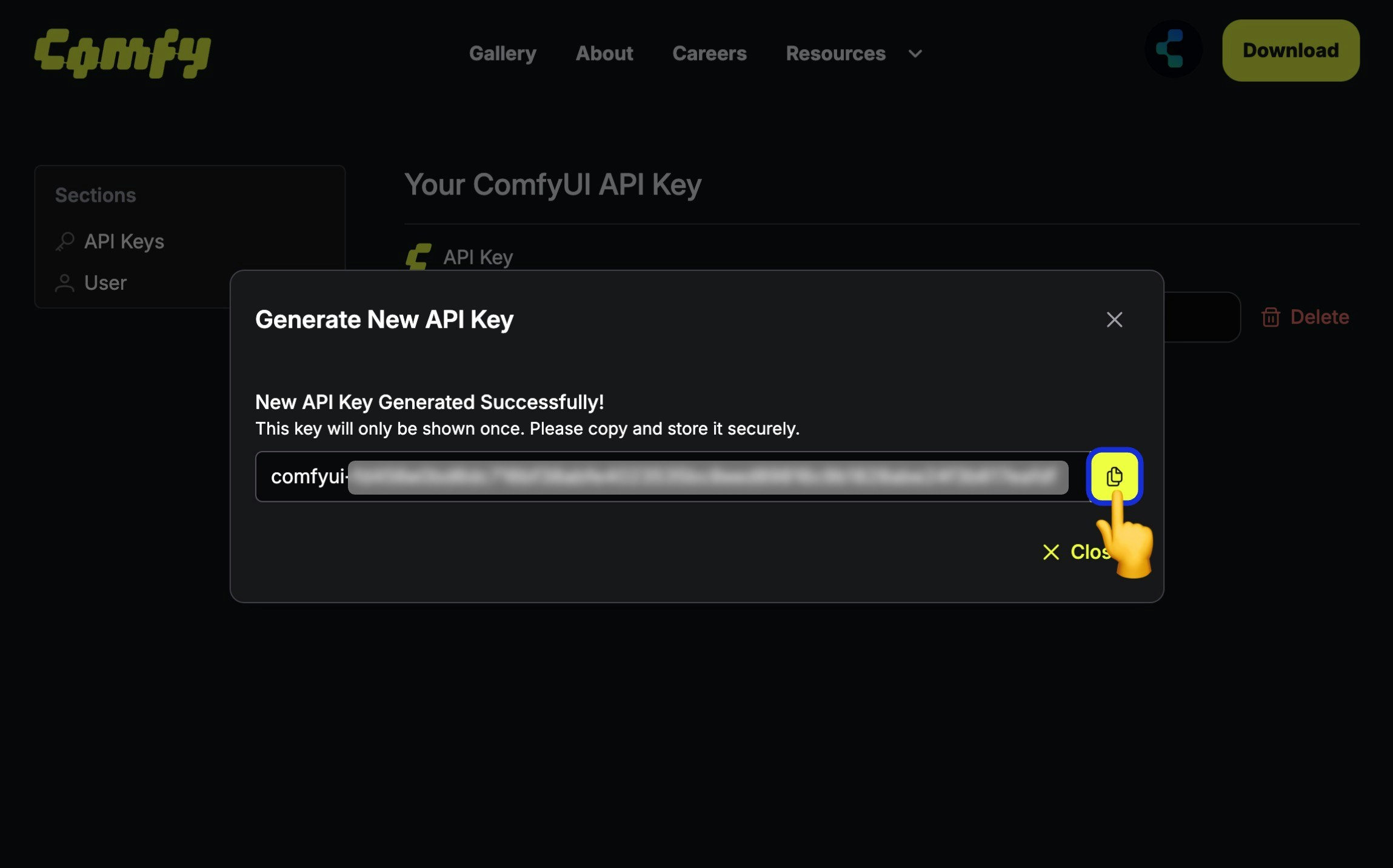 Since the API Key is only visible upon first creation, please save it immediately after creation. It cannot be viewed later, so please keep it safe.
Please note that you should not share your API Key with others.Once it leaked, you can delete it and create a new one.
Since the API Key is only visible upon first creation, please save it immediately after creation. It cannot be viewed later, so please keep it safe.
Please note that you should not share your API Key with others.Once it leaked, you can delete it and create a new one.
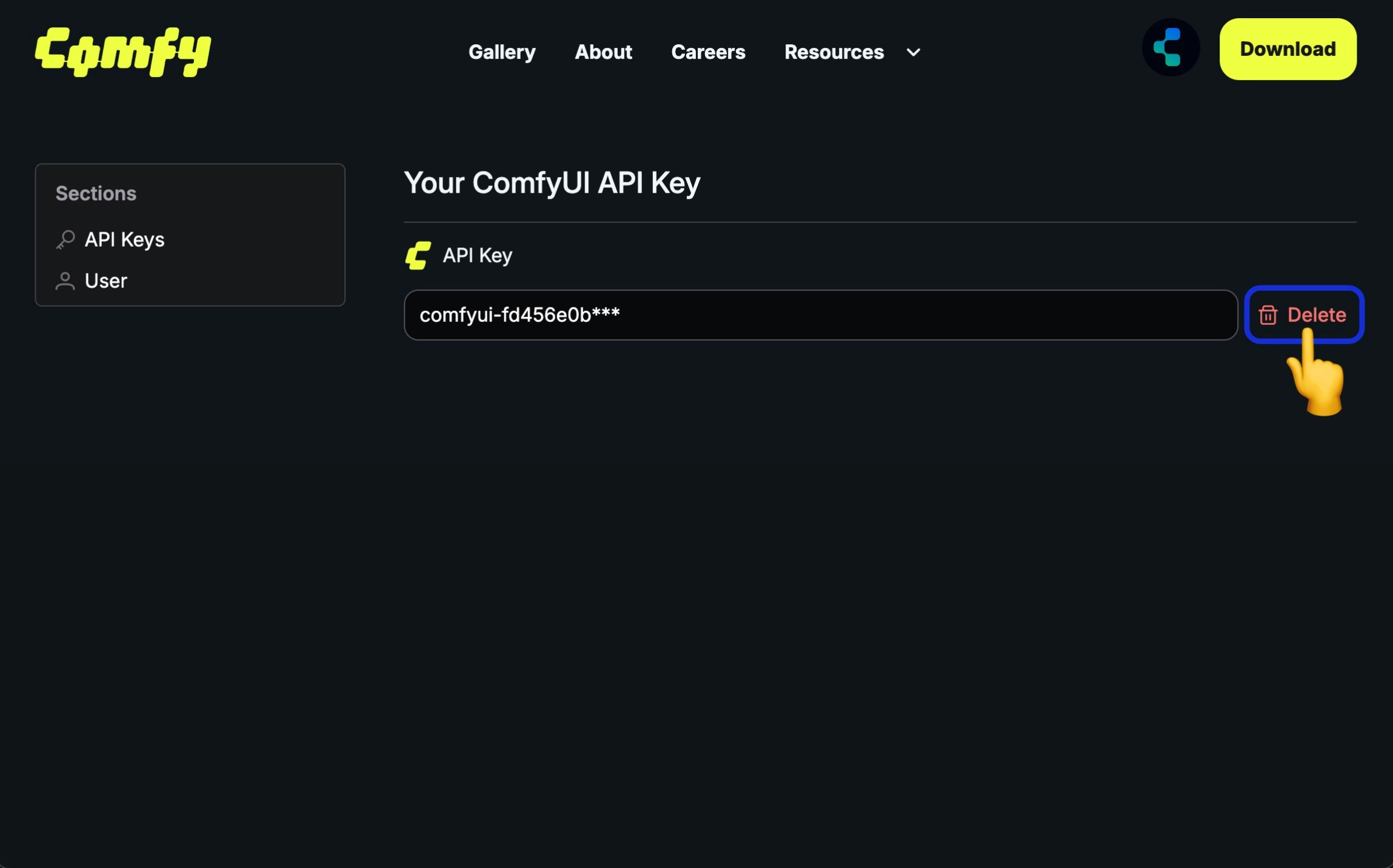 For unused API Keys or those at risk of being leaked, you can click `Delete` to remove them to prevent unnecessary losses.
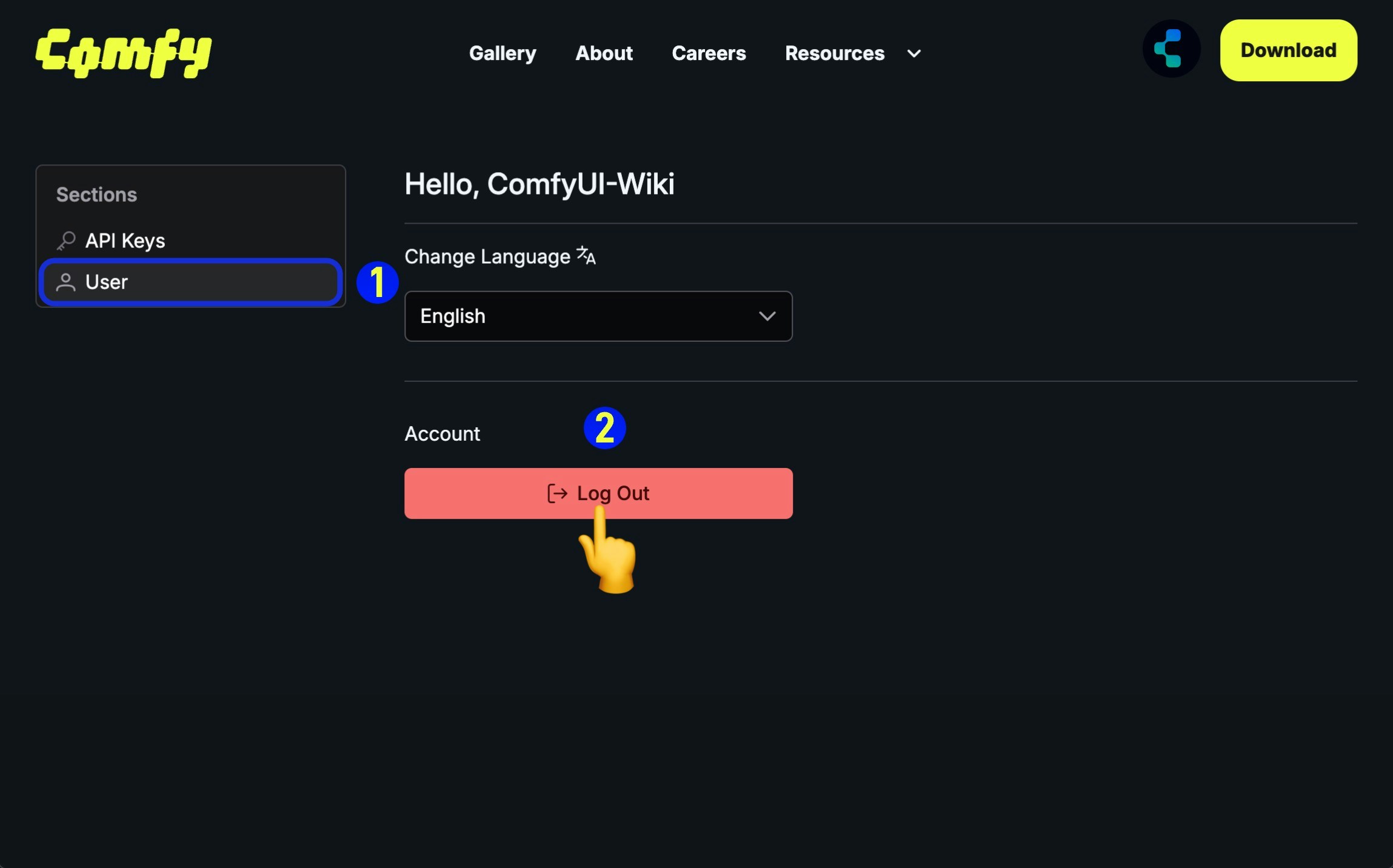 If you have obtained an API Key and are logged in on a public device, please log out promptly.
## Post-Login Status
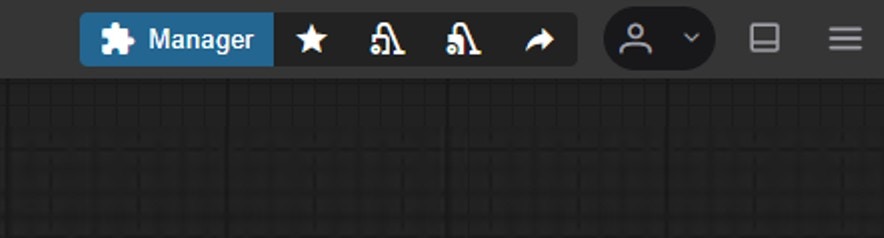
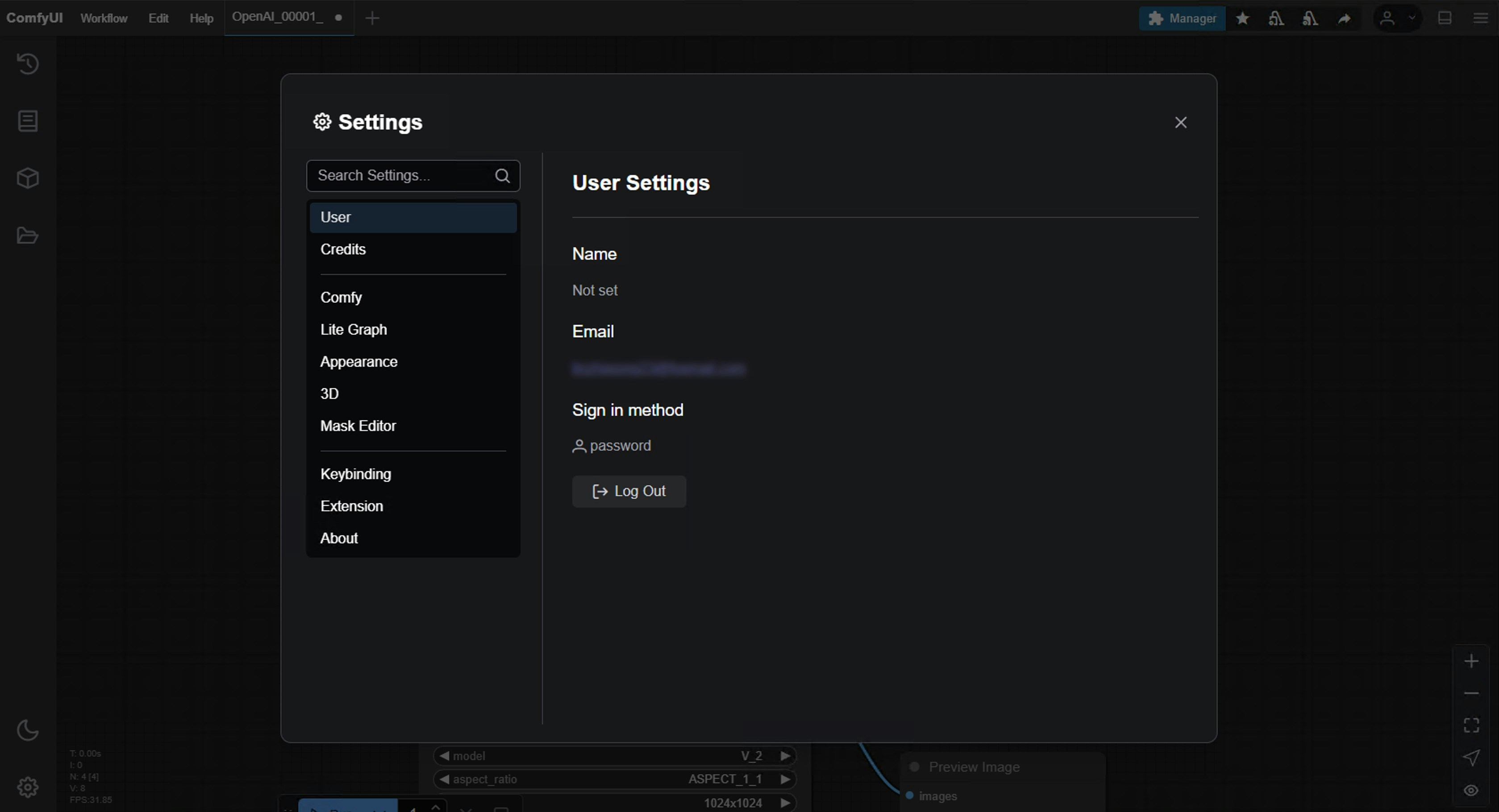
After logging in, a login button is displayed in the top menu bar of the ComfyUI interface. You can open the corresponding login interface through this button and log out of the corresponding account in the settings menu.
If you have obtained an API Key and are logged in on a public device, please log out promptly.
## Post-Login Status
After logging in, a login button is displayed in the top menu bar of the ComfyUI interface. You can open the corresponding login interface through this button and log out of the corresponding account in the settings menu.
 ## Frequently Asked Questions
We do not restrict login devices. You can log in to your account on any device, but please note that your account information may be accessed by other devices, so do not log in to your account on public devices.
Currently, only API Key login is supported in a LAN environment. If you are accessing ComfyUI services through a LAN, please use API Key to log in.
Our login service has a whitelist, so you may not be able to log in to ComfyUI deployed on some servers, for this case, you can use API Key login to solve it.
## Frequently Asked Questions
We do not restrict login devices. You can log in to your account on any device, but please note that your account information may be accessed by other devices, so do not log in to your account on public devices.
Currently, only API Key login is supported in a LAN environment. If you are accessing ComfyUI services through a LAN, please use API Key to log in.
Our login service has a whitelist, so you may not be able to log in to ComfyUI deployed on some servers, for this case, you can use API Key login to solve it.